 Custom CAD application development
A complete CAD interface,
ready to use.
An optional ribbon application shell wired to every CoreCAD subsystem, with DevExpress skins and English/Italian resources. Use it as it is, or build your own interface directly on the CoreCAD control.
Ribbon, panels, documents, properties: wired and ready.
BlueCAD is an application built on CoreCAD.NET, CoreModel.NET and DxUICoreCAD.NET. The numbers on the screenshot match the list below it.
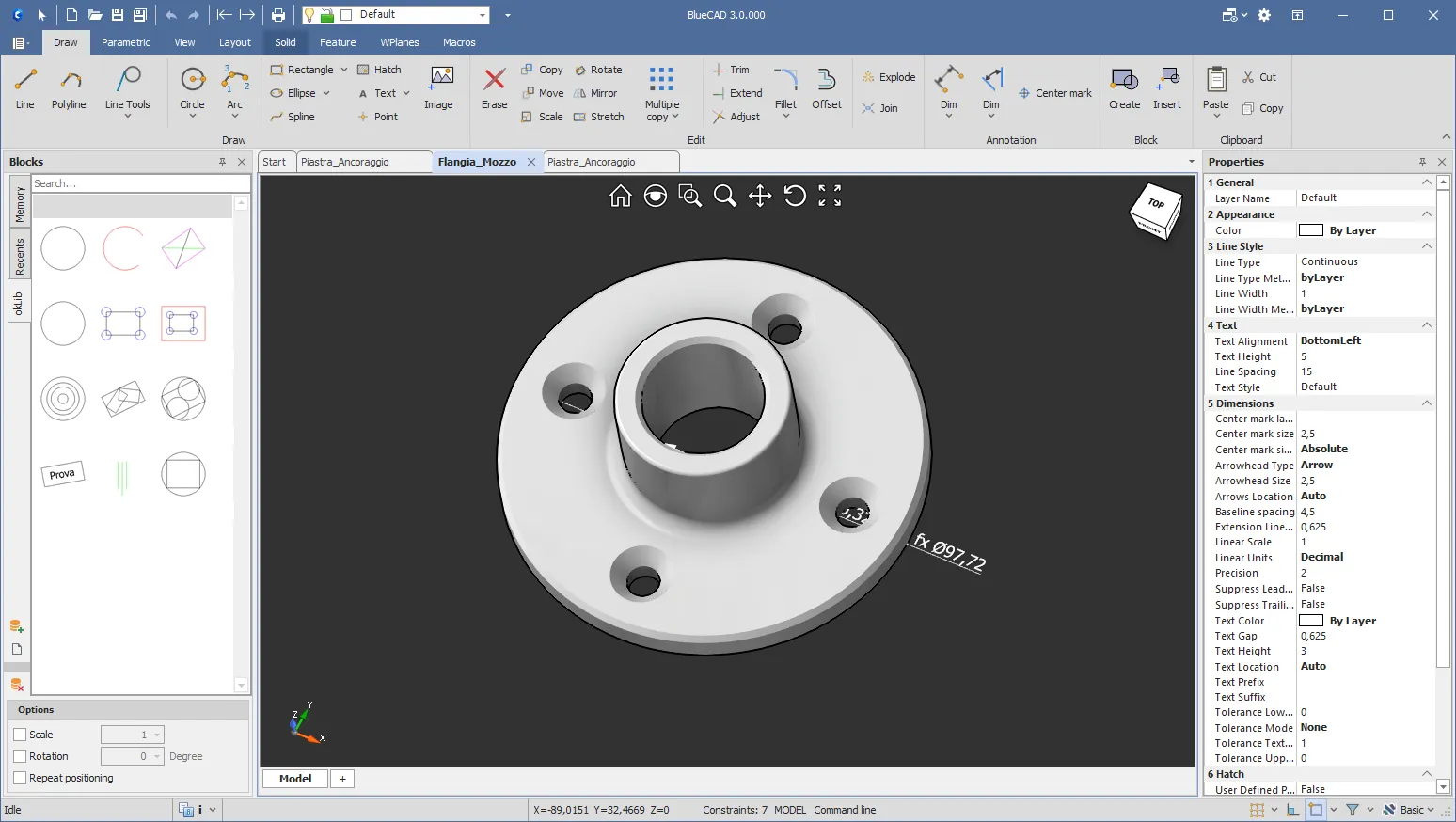
- Ribbon built from a declarative definition with live enabled states — Draw, Parametric, View, Layout, Solid, Feature, WPlanes and Macros tabs
- Blocks panel: in-memory blocks, recents and on-disk libraries; insert with scale, rotation and repeated placement
- Multi-document tabs with a start page
- Viewport with navigation toolbar and view cube — here a 3D flange modeled with CoreModel.NET
- Driving dimension bound to a variable expression (fx)
- Properties grid for the selection, grouped by general, appearance, line style, text, dimensions and hatch
- Model / Layout workspace tabs
- Status bar: coordinates, constraint count, command-line toggle and drafting aids
- Start page & recent files
- Layers panel
- Variables manager
- Macro manager & script editor
- Print preview & plot styles
- Page setup & title block
- Array & polar-array dialogs
- ACI & HSL colour picker
- Selection-filter dialog
- Constraint DOF indicator
- Crash recovery at start-up
- Persisted dock layout
- DevExpress skins
- English · Italian
Optional — and licensed by DevExpress. DxUICoreCAD.NET is built on DevExpress WinForms 23.2: using it requires your own DevExpress licence, which is not included with CoreCAD.NET. The CAD engine, 3D modeling and automation modules do not depend on DevExpress.
Every interface capability.
Open an area to read what it covers.
01Application shellApplication start-up, tabbed documents, a start page with recent files, panel layouts that are saved, settings, and recovery of documents after an unexpected shutdown.7 capabilities
- The application works with one document or several at once, keeps the panels, layer lists, properties and status bar on the active one, and offers helpers that draw the document tabs in colours that suit the current skin.
- A start page offers New, Open and Import and shows the recent files as thumbnails or as a detailed list, where a file is opened with a double click or removed from the list.
- Ready-made open, save, import and export flows remember the last folders used, ask whether a drawing being opened replaces the current one or is merged into it, and ask whether to save the changes before a document closes.
- When the host turns it on, drawings dragged from Windows Explorer onto the main window, the drawing area included, reach it sorted into native drawings, files in the enabled import formats and files that cannot be read, and helpers open or import such files, or those passed on the command line, without a dialog.In the next release
- The arrangement of the docked panels is saved on exit and restored at the next start in any interface language, and all panels can be hidden and brought back in one step, for example around a start page.
- User settings such as the window position, the skin and its palette, the last folders used and the open block libraries are kept in the Windows registry between sessions.
- When Windows shuts down or the application is closed from outside, unsaved drawings are saved to a recovery folder without asking, and at the next start the application can offer to reopen them.
02Ribbon & command lineA ribbon built from declarative definitions, a command line, messages in the status bar, and context menus.8 capabilities
- Ready-made ribbon tabs cover drawing and editing, view navigation and viewport layouts with switches for the panels, and constraints with driving dimensions, plus solid, feature and work plane tabs for documents of the 3D module.
- A Macros tab gives each saved macro its own button with icon and tooltip, next to commands that run a script file once and open the macro manager.
- Split buttons gather the variants of a command and remember the last one used, toggle buttons show the current state, and buttons carry tooltips and keyboard shortcuts.
- An optional command line, opened with F4 or a status bar button, runs a command typed with its arguments on the active document, such as a view with its direction, scale and position, and says why a line was refused.
- When a command asks for a value, an input bar above the status bar takes text, a whole number or a decimal number with a calculator, confirmed with Enter and cancelled with Escape.
- The status bar shows the prompt of the running command and gathers information, warnings and errors in a message list with an unread count and a popup that opens on new messages and closes by itself.
- Snap, grid and selection filter buttons, usually on the status bar, switch each aid on or off, and their drop-down menus choose the object snap modes, turn on snap to grid and open the grid and selection filter settings.
- A right click shows the options of the running command or of the grip under the cursor, and an optional standard menu adds Reset and the recently used commands.
03PanelsPanels for layers, blocks, entity properties, variables, colours, line types and line weights, and an indicator of the drawing's degrees of freedom.6 capabilities
- A layers panel, and a layer selector for the title bar, status bar or ribbon, set the current layer and edit name, visibility, lock, colour, line type and line weight in place, and the panel adds or deletes layers, telling how many entities a deletion removes.
- A blocks manager shows the drawing's blocks, recent blocks and those of open libraries as searchable thumbnails, inserts one by double click or by dragging it onto the drawing with optional scale, rotation and repeat, and renames, deletes or copies blocks between drawing and libraries.
- A properties panel shows the properties of the selected entities by category, marks the values that differ across a multiple selection, applies a change to every selected entity, and edits the defaults for new entities when nothing is selected.
- Colour, line type and line weight pickers, used by the layers and properties panels, offer AutoCAD index colours, true colours by RGB or HSL, ByLayer and ByBlock, and line types and weights drawn as samples.
- A variables panel lists the document's variables with their expressions and values for editing in place, and binds them to feature parameters and driving dimensions picked in the drawing, framing the target of the selected binding.
- A status bar indicator shows the number of constraints and the degrees of freedom left on the selection, warns when an edit left constraints unsatisfied, and opens a popup telling whether the selection is fully or over-constrained and which constraints it carries.
04DialogsDialogs for rectangular and polar arrays, the grid, selection filters, overlap cleanup and export options, and for managing and editing macros.5 capabilities
- The rectangular and polar array commands open a dialog for the spacing, counts and directions, or the radial spacing, item count and rows, and the drawing previews the result as the values change.
- Settings dialogs adjust the grid, with its step, line counts, major lines and density presets, and the selection filters, which limit picking by entity type, layer, colour, line weight and line type.
- An overlap cleanup dialog analyses the chosen entity types in the background with a tolerance and a minimum overlap, lists the overlaps found with a zoom to each, and removes duplicates or merges overlapping lines and arcs.
- Exporting a drawing that has layout sheets to DWG or DXF asks whether the sheet views are exploded into geometry or written as live AutoCAD viewports, and remembers the answer for the session.
- A macro manager edits the catalogue of saved macros (command name, script file, description and icon), refusing names already taken by a command, and a script editor opens a macro's JavaScript source to read and change it.
05Layout workspaceThe paper space workspace: sheet tabs, page setup, title block, views and their scale, printing, PDF, and a plot style editor.10 capabilities
- Each document gets one row of tabs along the bottom (Model, one per sheet, and + for a new sheet), where a sheet is renamed in place with F2 or a double click, deleted from its menu and reached with Ctrl+PgUp and Ctrl+PgDn, keeping its own zoom.
- A Layout ribbon tab and a tool strip beside the paper offer the sheet, view, annotation and output commands and grey out those the document cannot run yet, such as view commands on a sheet without views.
- The status bar reads MODEL or PAPER with the active sheet, print, preview and PDF export act on the sheets when the paper is shown and on the model otherwise, starting a drawing command brings the model back, and an event tells the host when the space changes.
- Sheet dialogs create a sheet from a standard or custom paper size, with projection convention, optional title block and page setup, or as a copy of another sheet with or without its views, and change any sheet's paper, orientation, margin, plot scale, pen table and printer in one undo step.
- A title block dialog fills in the title, drawing number, scale, sheet number and format of the active sheet, and view commands hide the entities selected in the model from a view or show them all again.
- The new view dialog shows the whole model from a standard direction, the current framing or an area picked with two corners, at a standard, fitted or typed scale, centred, at given coordinates or where the user clicks on the paper, and suggests a scale that fits a picked area.
- Views are dragged on the paper with a ghost frame that snaps to a grid and stays on the sheet, nudged with the arrow keys or removed with Delete, and a context menu or a double click sets their scale, position, lock and hidden model layers, one undo step per change.
- An Annotate panel places texts and linear dimensions on the paper, and linear dimensions inside a view that measure the model, by clicking points on the sheet.
- A print dialog sets the printer, paper, margins, scale, print area, copies and colour, fill and line weight options with a preview, and a plot style editor maps drawing colours to printed colours, line weights and screening.
- On the paper space the print dialog prints the active sheet, all sheets or a range by position or name, each on the paper of its own page setup, and previews the same sheets as the Layout ribbon.
06UI customizationHooks for the host application: its own ribbon definitions and panels, vetoes on layer and block actions, and extensible context menus.9 capabilities
- A host describes its own ribbon tabs, panels and buttons in code, can check them against the registered commands, merges them by name into the ready-made tabs, and can remove tabs, panels, buttons or variants from the ready-made definitions.
- A host gives ribbon buttons an availability rule and re-evaluates every rule with one call after a change of state, so commands that cannot run are greyed out instead of answering with a message.
- A host adds its own docked panels beside the built-in ones, with a fixed identity so that they keep their place in the saved panel layout.
- Host handlers can hide chosen layers and blocks from the layers panel, the layer selector and the blocks manager, and veto adding, renaming, deleting, making current or changing a layer and inserting, renaming, deleting, exporting, importing or replacing a block.
- Host handlers can hide chosen layers and blocks from the layers panel, the layer selector, the blocks manager and the other layer lists of the interface (properties panel, selection filter and layout views), and veto adding, renaming, deleting, making current or changing a layer and inserting, renaming, deleting, exporting, importing or replacing a block.In the next release
- Before the blocks manager is created, a host can leave it out, hide its drawing, recent, library or options sections, and turn off opening, creating or closing libraries and inserting, renaming or deleting blocks.
- A host adds, removes or reorders the items of the standard right-click menu while it is built, knowing the entity, grip and selection under the click, or replaces its content in a derived class.
- A host sets the caption of every message box of the interface, for example to its product name, which otherwise is the title of the main window.In the next release
- A host limits the file formats offered by the import and export dialogs, also while the application runs, and a file outside that set is refused even when its name is typed by hand.
Have a CAD problem worth solving?
Tell us what you're building. We'll give you a clear assessment of whether we're the right team, and how we'd approach it.
sales@cadwaresoft.com